

A Practical Guide on How to Implement Live Chat Support
May 15, 2026
Live chat promises instant support. In reality, it often delivers dropped conversations, slow replies, and frustrated customers.
The problem isn’t the tool; it’s how it’s implemented. Without a clear strategy behind how to implement live chat, it quickly becomes another broken touchpoint instead of the fast, helpful experience customers expect. These days, 38% of customers are quick to call out one bad experience, including:
- Support showing as available while offline
- Chats dropping mid-conversation without warning
- Pre-chat forms creating friction before the interaction even starts
This gap between expectation and reality is why implementing live chat support isn't a plug-and-play process. The tool gets you in the game, but a real strategy is what makes it work.
Take AI-to-human handoffs as an example. When should the bot step aside? Nextiva found 90% of businesses still don't have a clear answer. And this is just one of the decisions standing between you and a successful setup.
With that in mind, this guide walks you through how to implement live chat support in two parts: getting your tool up and running and preparing your team. But first, let's briefly cover how live chat works.
How does live chat work?
Live chat works by adding a JavaScript-based widget on your website, which creates a real-time messaging window (typically in the bottom corner). This chat box lets visitors instantly connect with your support agents or bots. Instead of calling or emailing, customers can get immediate, conversational help.
The real value goes deeper than convenience. Kayako's study also found that 95% of customers value quality over speed, and live chat delivers on both fronts. The result: consumers are 52% more likely to remain loyal to companies that offer it.
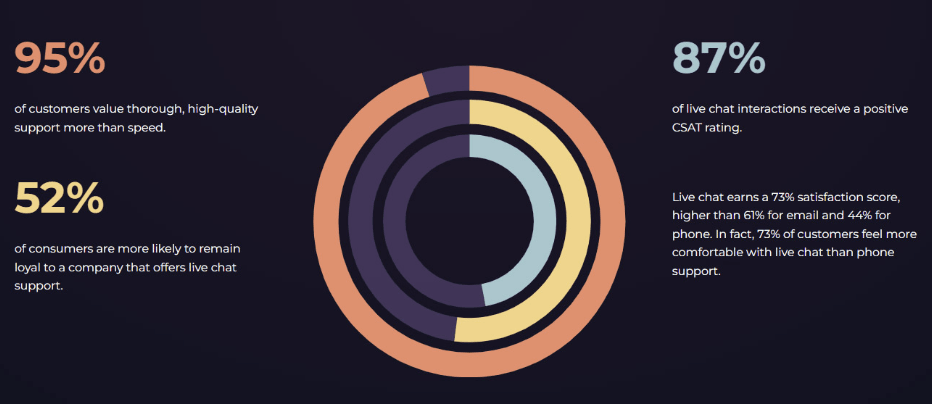
Source: Kayako
How to implement a live chat support tool
1. Define your goals and KPIs
Any live chat strategy starts with a clear set of goals, as they shape every decision that follows, from how you configure the tool to what a successful experience looks like.
A focus on efficiency, for instance, leads to more automation and higher concurrent chat limits for your agents. Customer satisfaction points toward more human interaction and personalization.
The support KPIs that matter most will depend on your goals, but First Response Time (FRT), Average Resolution Time (ART), and customer satisfaction score (CSAT) are the ones most teams find themselves coming back to.
2. Design the customer experience
Before you even open a browser tab to compare tools, map out what the experience will look and feel like for your customers. The software you choose should follow from these decisions:
- Will AI be the first point of contact, or will customers have the option to reach a live agent immediately?
- Will live chat connect to a knowledge base for self-service?
- Will support be available 24/7 or only during business hours?
- What happens when a query escalates beyond live chat?
Take the first question as an example. AI handles volume well: repetitive queries, instant responses, and zero wait time. But human interaction still carries enormous weight in the experience: 93.4% of consumers still prefer engaging with a human over AI, according to a Kinsta online survey.
For complex issues, frustrated customers, or situations that require genuine empathy, there's no substitute for a real person on the other end. Your strategy needs to account for that.
A practical rule of thumb: let AI field tier-one queries (password resets, policy questions, appointment confirmations) and trigger a human handoff when sentiment turns negative, or the customer explicitly requests a person.
3. Pick a tool that fits your needs
Ground your decision in the features your experience design requires, how well the platform manages your current complexity, and whether it can scale without a full re-implementation down the line.
Beyond just listing features, also think about:
- Ease of use: A powerful tool that your team struggles to use daily slows response times. Factor in the learning curve for agents, admins, and customers.
- Security and privacy: Make sure the platform meets industry-relevant standards such as GDPR, SOC 2, or HIPAA
- Integrations: Live chat rarely lives in isolation. A tool that doesn't connect with your CRM, helpdesk, and analytics stack creates silos
Pay special attention to integrations if the experience you designed requires capabilities the platform doesn't cover natively. A great example is Cobrowsing, which lets an agent view and interact with a customer's web browser in real time.
When a customer is struggling with something visual or technical, seeing their screen can turn a 30-minute troubleshooting session into a five-minute fix. If that matters to your users, confirm your stack can support it before committing to a platform.
4. Install and customize your live chat tool
For the actual setup, most live chat tools follow a similar process. Here's what it typically looks like:
- Copy and paste a small code snippet into your website's backend
- Customize the chat widget with your colors and logo, and place the button in the bottom right corner, where most visitors instinctively look for help
- Write a short greeting that appears the moment someone opens the chat window
- Set rules that automatically open the messaging box when a visitor seems stuck, like spending too long on an FAQ page without finding an answer
This is also the step to connect your live chat to your existing tools, such as your CRM and support ticket software, so your team has full context for every customer without switching between platforms.
5. Test and go live
Testing is the final step before launching your live chat support. Use preview mode to experience the chat from the customer’s perspective, then test it on a hidden page before making it public.
You don't have to go live all at once. Start during quieter hours, when traffic is lower, so your team can practice, gather feedback, and resolve issues without the pressure of a large volume of visitors.
Once everything runs smoothly, expand coverage into your busiest hours. When your team is offline, switch the tool to messaging mode to collect emails or let an AI chatbot handle basic questions.
Getting the tool right is half the battle. The other half is ensuring your team can deliver the experience you've designed. Here's how.
6 live chat strategies to prepare your support team
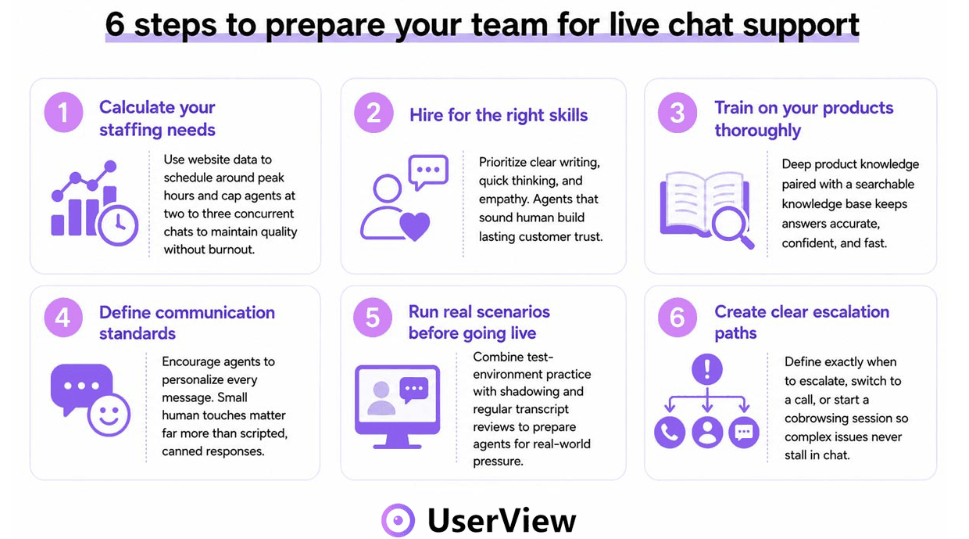
1. Calculate your staffing needs
Analyze your website data to identify your busiest hours and plan schedules around them. That way, customers are never left waiting because your team is understaffed.
Decide how many interactions each agent can take on at once. Two to three concurrent chats are the sweet spot for keeping things moving without sacrificing response quality or burning out your team.
2. Hire for skills and empathy
Look for candidates with strong writing skills, quick thinking, and a natural ability to communicate clearly. Agents who sound human make customers feel heard.
Beyond skills, hire for empathy. It's what separates a forgettable interaction from one that builds lasting customer trust.
3. Train on your products thoroughly
Agents can't support what they don't fully understand. Deep product training is one of the most direct ways to avoid slow ticket resolution. Every answer becomes accurate, confident, and useful.
Back that up with a well-organized knowledge base that agents can search in real time. It shortens response time and reduces the risk of misinformation reaching the customer.
4. Define communication standards
Agents should always introduce themselves, proofread messages, and confirm the customer is satisfied before closing the chat. Small habits like these shape the overall experience.
Canned responses save time, but over-relying on them makes dialogues feel robotic. A small personal touch in every message goes a long way in making customers feel valued.
5. Run real scenarios before going live
Give new agents hands-on practice in a test environment before they interact with real customers. It builds confidence with the live chat software and prepares them for pressure.
Pair that with shadowing: having new hires observe experienced agents handle complex situations. Ultimately, review transcripts together regularly, as every week brings new edge cases worth learning from.
6. Create clear escalation paths
Agents need to know when to escalate a difficult issue to a senior team member or manager to ensure the customer always receives the right level of help.
Plus, set rules for when to switch from chat to a call or initiate a cobrowsing session. It prevents long, confusing text exchanges and keeps the customer from growing frustrated.
Once you understand how live chat works and have covered the best practices for both tool setup and team preparation, adding cobrowsing can turn good support into effortless interactions.
How cobrowsing can improve your live chat support
Live chat opens conversations and solves simple issues, yet not every problem fits into a text box. Cobrowsing gives agents a real-time view of customers' screens, turning long troubleshooting sessions into fast resolutions.
Unlike traditional screen sharing, cobrowsing runs entirely in the browser without any downloads or installations. That means sessions start without friction for the customer, whether they're on a phone, a restricted work laptop, or have limited technical experience.
In practice, your agents can:
- Launch a secure cobrowsing session in under three seconds using a four-digit code, from within tools like Intercom, Zendesk, or LiveChat
- See the exact error or confusion point as it happens, which removes guesswork and eliminates “unreproducible” issues
- Guide customers visually with drawing tools, spotlights, and laser pointers instead of typing step-by-step instructions or narrating complex workflows
- Turn long troubleshooting calls into short interactions by navigating the interface together instead of switching between chat and product tabs
- Maintain full security by viewing only the active browser tab, with sensitive data like passwords and payment details automatically masked
UserView brings all of this straight into your existing live chat setup, ready to use from day one. Book a Userview demo today to see how a single visual session can do the work of a hundred messages.
About the Author
Claudia Nobauer
Claudia is a marketing strategist at UserView and loves business strategy, customer experience and communication.