The Lookup Code
The lookup code is the easiest way to quickly find a Visitor that is not logged in. You can show the Visitor a short code that they can read over the phone (or send through chat) to the Agent. The Agent would enter the code in the UserView dashboard and connect to the Visitor right away.
Forcing the use of the lookup code
Settings » Visitor Search. This way, they won't see the full list of visitors, but only see the one that has the lookup code they entered. We throttle the search to make sure they can't enter all the codes.How to Show the Code
There are different ways to show the code, which can all be enabled in the Settings » Visitor Search.
Control Key
You can make a popup with the code appear by asking the Visitor to press Ctrl 5 times anywhere on the page. This works great as it doesn't disrupt your layout and doesn't require any setup.
Widget
You can show a small widget on the side of the screen which the Visitor can click to see the lookup code.
HTML Element
You can have UserView replace the content of an HTML element with the lookup code. For example, you could configure the element to be #upscope-lookup-code, and have the following on the page:
<p id="support">
  If you need any help, please read the support agent this code: <span id="upscope-lookup-code"></span>
</p>
Too many visitors?
Link
You can show a popup with the lookup code by creating a link to #upscope-lookup-code.
<p id="support">
  If the support agent asks you for a code, click <a href="#upscope-lookup-code">here</a>.
</p>
Use the useUpscope hook to get the lookup code:
import { useUpscope } from "@upscopeio/react";

function SupportSection() {
  const { getLookupCode } = useUpscope();
  const [code, setCode] = useState(null);

  const handleShowCode = async () => {
    const lookupCode = await getLookupCode();
    setCode(lookupCode);
  };

  return (
    <div>
      {code ? (
        <p>Your support code is: <strong>{code}</strong></p>
      ) : (
        <button onClick={handleShowCode}>Get Support Code</button>
      )}
    </div>
  );
}
You can also use the dashboard settings (Settings » Visitor Search) to enable automatic methods like the Control Key or Widget, which work the same as the vanilla Javascript implementation.
Shake Gesture
By default, the SDK shows a lookup code dialog when the user shakes their device. You can customize or disable this in the configuration:
let config = UpscopeConfiguration(
    apiKey: "YOUR_API_KEY",
    enableLookupCodeOnShake: true,
    lookupCodeKeyTitle: "Support Code",
    lookupCodeKeyMessage: "Please share this code with support: {%lookupCode%}"
)
Programmatic Access
Request a lookup code and display it in your own UI:
// Request a code from the server
Upscope.shared.getLookupCode()

// Read the current code
let code = Upscope.shared.lookupCode ?? ""
Subscribe to Changes
Listen for lookup code changes using Combine:
Upscope.shared.lookupCodePublisher
    .sink { lookupCode in
        print("Lookup code: \(lookupCode ?? "none")")
    }
    .store(in: &cancellables)
Shake Gesture
By default, the SDK shows a lookup code dialog when the user shakes their device. You can customize or disable this in the configuration:
val config = UpscopeConfiguration.Builder("YOUR_API_KEY")
    .enableLookupCodeOnShake(true)
    .lookupCodeKeyTitle("Support Code")
    .lookupCodeKeyMessage("Please share this code with support: {%lookupCode%}")
    .build()
Programmatic Access
Request a lookup code and display it in your own UI:
// Request a code from the server
Upscope.getLookupCode()

// Read the current code
val code = Upscope.lookupCode
Subscribe to Changes
Listen for lookup code changes using StateFlow:
launch {
    Upscope.lookupCodeFlow.collect { lookupCode ->
        println("Lookup code: $lookupCode")
    }
}
Requiring the Lookup Code
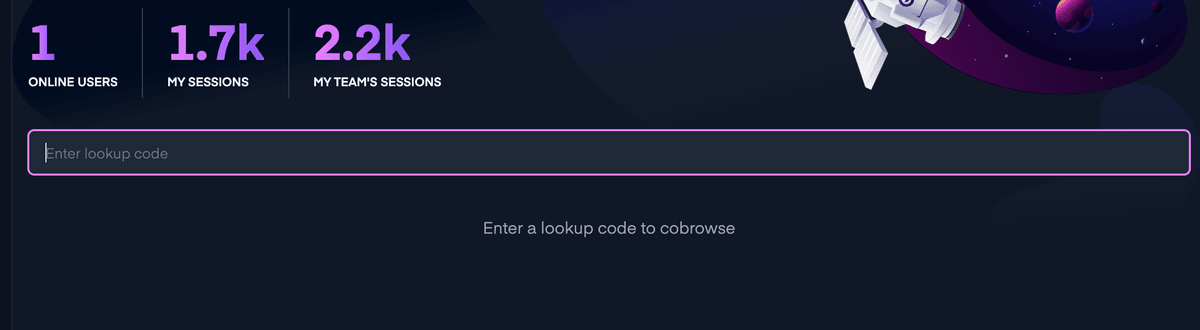
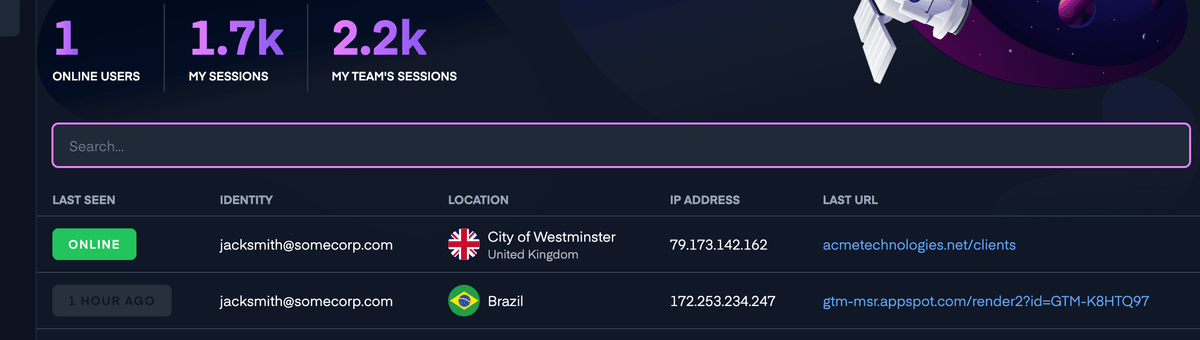
You can restrict your team so they must enter a lookup code to find visitors, rather than browsing the full list. Enable this at Settings » Visitor Search by selecting "Yes" under "Require a code in visitor list".
Default view: agents can see and select any visitor.
Limited search: agents must enter a lookup code to find visitors.