Front
AICopy for LLM
Add UserView Co-Browsing to Front Live Chat in 3 Steps
- If you have not done so already, create your UserView account on userview.com. There's a free trial available. You'll need to follow the instructions, including adding the JavaScript snippet to all pages you want to co-browse on.
- Next, go to the Front integrations store and install Upscope. This will generate a unique Token. Copy that Token.
- Log in to UserView, go to your
Settings»Integrationsand choose the Front integration. Paste the Token in there.
That's it, you're ready to test it.
How to Run a Test of the Integration
To confirm that UserView is installed correctly, log into UserView, and you'll see a list of customers who are currently on your website.
Steps to Test the UserView Front Integration
- Go onto your website and start a new live chat.
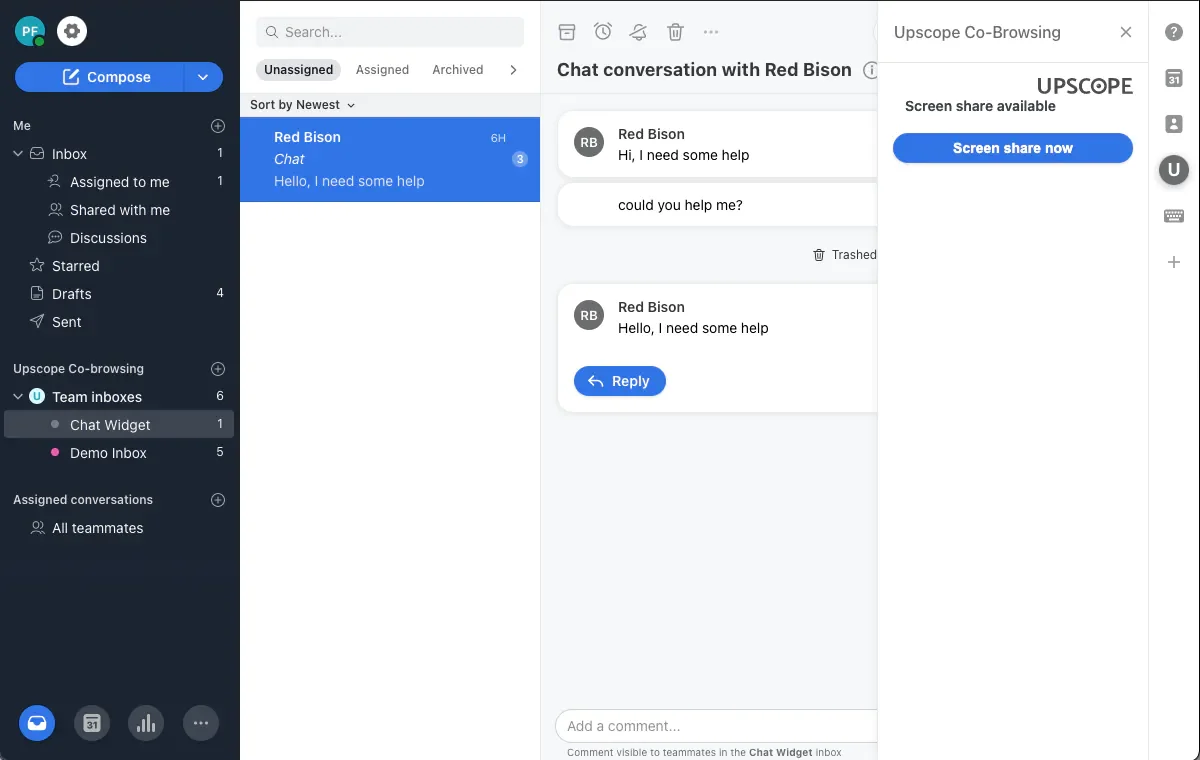
- Within Front, you'll see the Upscope
Screen sharingbutton appear on the right-hand side for that new chat. - Click the screen sharing button, and a pop-up will appear in the browser asking for permission to screen share.
- Click yes and begin co-browsing.
- You are able to not only scroll, click, and type for the customer but use the pen tool to draw on objects or around objects to bring the customer's attention to them.
How to Screen Share When the Customer Phones In
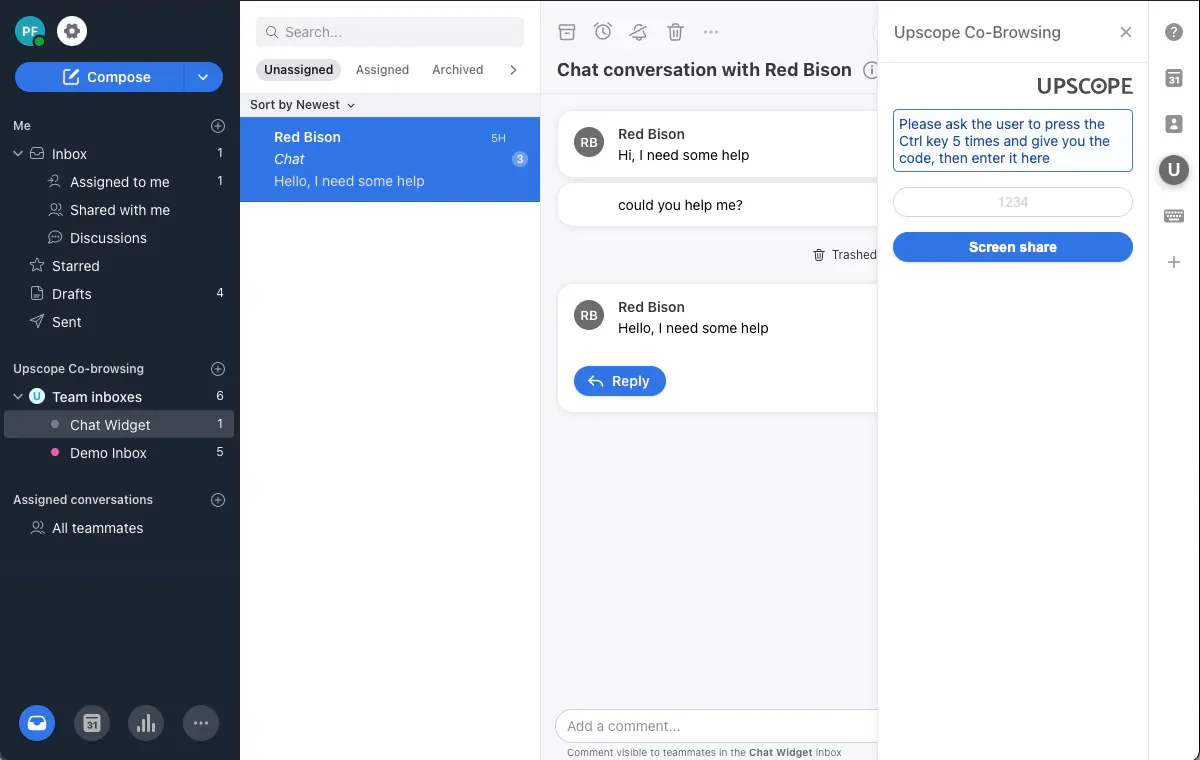
If the customer has phoned in rather than begun a live chat, you can identify their screen by asking them for their unique UserView 4-digit support code. This code can be added to your site footer or header or generated by the customer through tapping the Ctrl key 5 times.
Ask them to read out the code and enter that into the UserView Front app as below.
Depending on your setup, it can either be pulled up by the customer pressing Ctrl on their keyboard 5 times or it can also be displayed somewhere on the page. Find out more about the support code